
What is Facial Recognition?
The Buzz mobile app allows your employees to clock in and out from their phone while on a job site. To help ensure your employee is clocking in at work, you can choose to utilize facial recognition to verify the employee's identity when using the Mobile Time Punching functions.
*Note* If you are interested in utilizing the BuzzTM app, please contact your TempWorks Account Manager.
*Note* If you haven't set up Buzz to work with TimeClock punches yet, see Buzz - Setting Up Mobile Time Punching.
Setting Up Facial Recognition
*Note* Before you can utilize Facial Recognition Punching, you must first work with your Account Manager to ensure Facial Recognition is available on your Buzz App. You must be a WebCenter admin to complete this setup process.
Before setting up Facial Recognition, we recommend:
- First setting up Mobile Time Punching: Buzz - Setting Up Mobile Time Punching
- Giving your employees access to Buzz: Buzz - Inviting Employees to Buzz
Turning on the Face Verification Configuration
In order for employees to utilize facial recognition for punching, you must first enable the configuration in WebCenter.
- Navigate to the WebCenter Admin portal
- Select the "Config" tab:

- Select the "TimeClock" category:
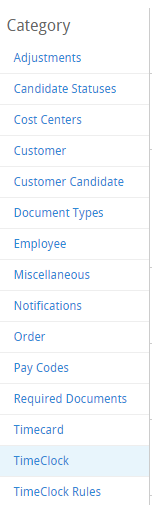
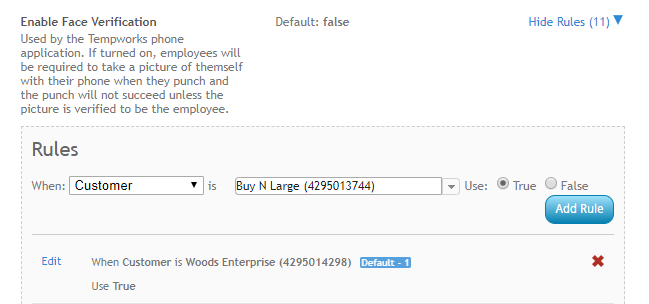
- Find the "Enable Face Verification" configuration & select "Show Rules"
- Create a rule to enable for a specific Customer or Department:
- For more information on creating rules see Administration: Intro to Configurations.


Creating the Employee's Facial Recognition Profile
Each employee that you want to utilize Facial Recognition Punching will need to set up their Facial Verification Profile. The verification profile is set up via their mobile device to ensure they can clock in via Facial Recognition.
To enable a user to create their Facial Recognition profile, navigate to the employee's record in Beyond.
Select the Web User Charm and select "View Account Details".
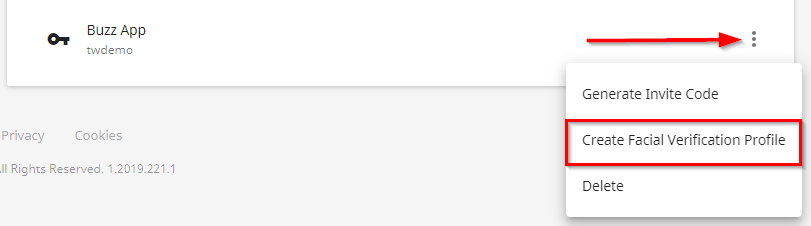
Within the Account Details select the  to the right of the "Buzz App" within the "Web User Products" card and then select "Create Facial Verification Profile":
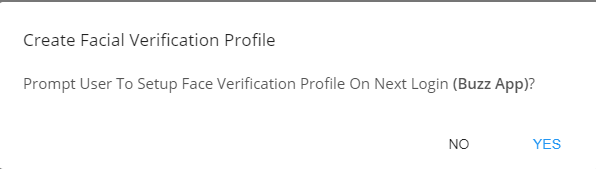
Within the new window, select "Yes" to prompt the employee to setup their Face Verification Profile.
The employee will be prompted to set up their profile within the Buzz application. The setup process takes approximately 5 minutes to complete.
*Note* For instructions on how to set up the profile, see Facial Recognition Tips & Tricks.
*Note* Employees will be prompted with a notification that say, "Onboarding Required." They need to choose View Terms and Conditions and select Accept, this is accepting the legal terms and allows them to use the biometric facial recognition feature.
If you would like to see a copy of those terms, you can here, https://www.tempworks.com/biometric-privacy-policy/.