

Overview
TempWorks Enterprise™ and Beyond™ both integrate with Rapid! Earned Wage Access (EWA) to allow employees immediate access to accrued wages.
*Note* Rapid! Earned Wage Access requires an existing relationship with Rapid! and additional licensing.
Self-Hosted clients do not have access to the Rapid! Earned Wage Access integration.
Please contact your TempWorks Account Manager for more information.
*Note* Please note that Rapid! Earned Wage Access does not support the following:
- 1099 Employee (Independent Contractors)
- Employees not on an Active assignment.
- The use of Units within timecards.
- For example, if an employee has a timecard with both hours and units, Rapid! EWA will apply only to the hours within the timecard and not the units.
*Note* Rapid! EWA requires timecards to include daily hour details. To meet this requirement, please enter the hours worked for each day in the Day 1 through Day 7 fields on the timecard.
How to Setup Rapid! Earned Wage Access
Setup for Rapid! EWA is comprised of the following steps:
- Initial setup completed by TempWorks
- Complete registration setup within Beyond
- Create HRCenter Rapid! Registration page
*Note* If you utilize custom Security Groups with Advanced Permissions, you will need to add the Access to the "Rapid! Earned Wage Access" form within Employee > Pay Setup to the Security Groups that require the functionality:
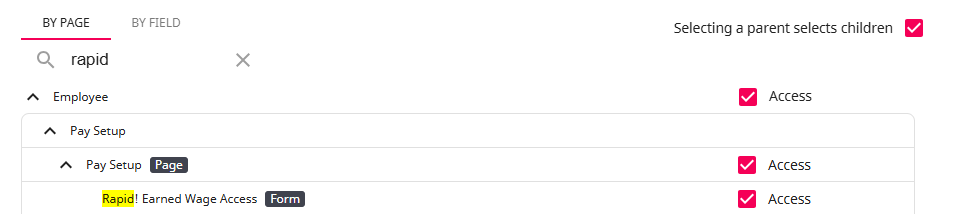
For more information on created custom Security Groups with Advanced Permissions, please see the following article titled "Beyond - Creating Security Groups with Advanced Permissions".
Completing Registration Setup within Beyond
Once initial setup has been completed by TempWorks, navigate to Beyond > System Settings > External Service > Rapid! Earned Wage Access and select the "+" at the top-right to add the Rapid! EWA registration information:

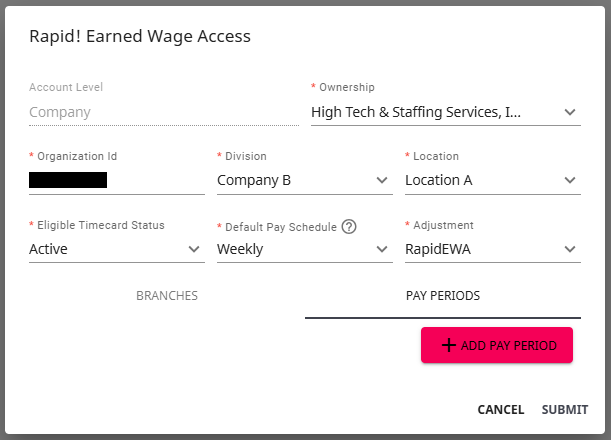
Within the Rapid! Earned Wage Access window, enter the "Organization ID" that has been provided to you by Rapid!:
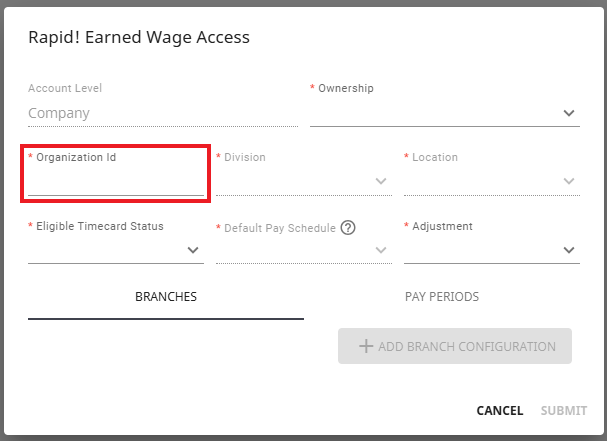
Once the "Organization ID" has been entered, the remainder of the fields are able to be edited. Select the appropriate options from the following dropdowns:
- Ownership: The Entity in which the account will reside
- Division: Work with Rapid! to determine
- Location: Work with Rapid! to determine
- Eligible Timecard Status: The status that the timecard needs to be in in order for TempWorks to submit to Rapid! TempWorks suggests this be set to "Active"
*Note* The "Eligible Timecard Status" dropdown contains the following options:
- Active
- Approved
While it is recommended to select "Active", if selecting "Approved", you will need to manually approve the Rapid! EWA timecards each day.
- Default Pay Schedule: The status that is used to enroll employees with no assignment or multiple assignments
- Adjustment: The type of adjustment that is to be applied to the employee's paycheck
*Note* Optionally, you can choose to add branch configurations and/or additional pay periods by selecting the appropriate tab/option at the bottom of the Rapid! Earned Wage Access window:
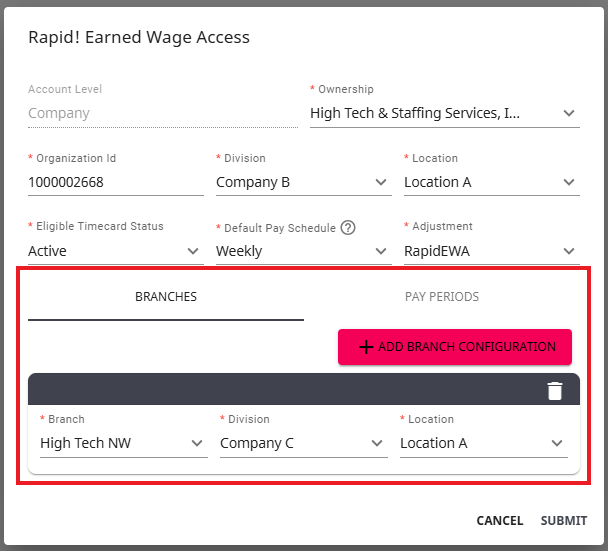
The branches are set to mirror hierarchy and are sent to Rapid! for employee mapping.
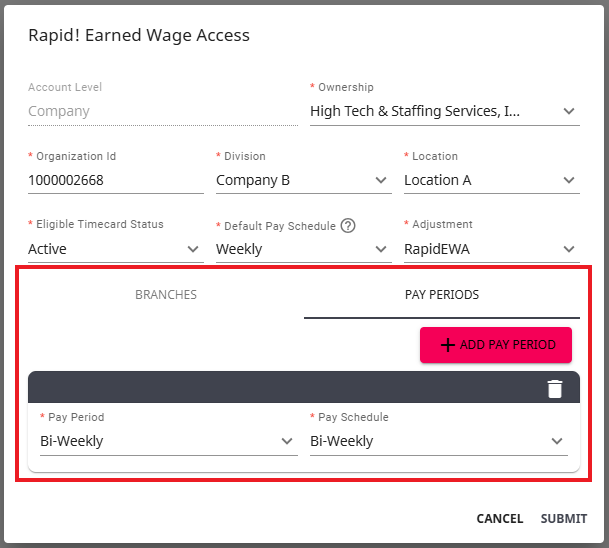
The "Pay Period" helps to determine how often TempWorks receives an adjustment file from Rapid!.
Once the information has been entered, select "Submit" to complete the registration setup within Beyond:
Once setup is complete and enabled, the "Configuration Status" will show as green. This status represents the connection between TempWorks and Rapid!:
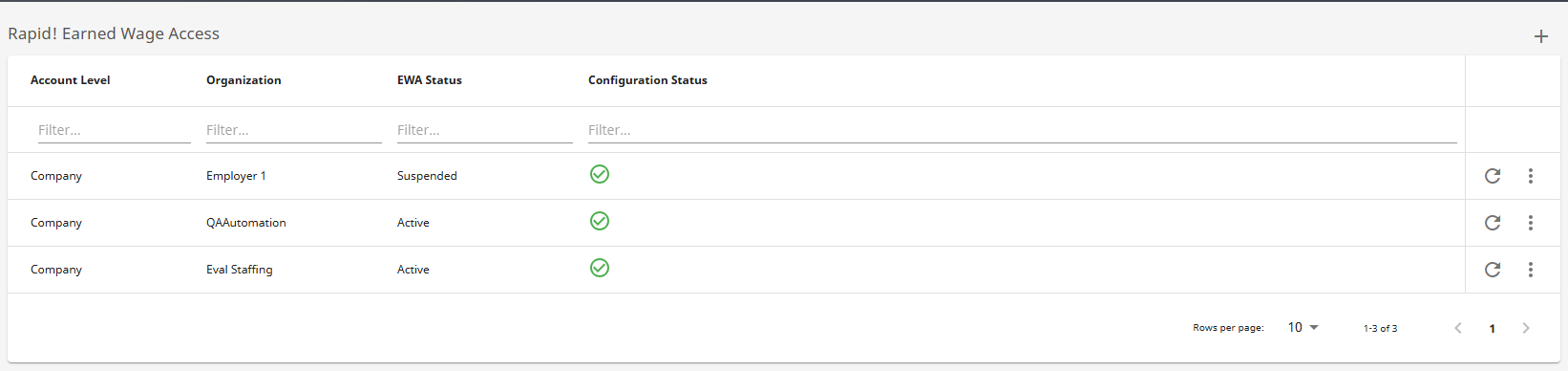
*Note* In the event the "Configuration Status" shows as a gray "X", please validate the information entered within the Rapid! Earned Wage Access window.
Creating the Rapid! Registration Page within HRCenter
Once registration within Beyond is complete, the HRCenter page will need to be created.
Navigate to HRCenter Admin > Pages > Information Tab > Select the "+" to add a new page:
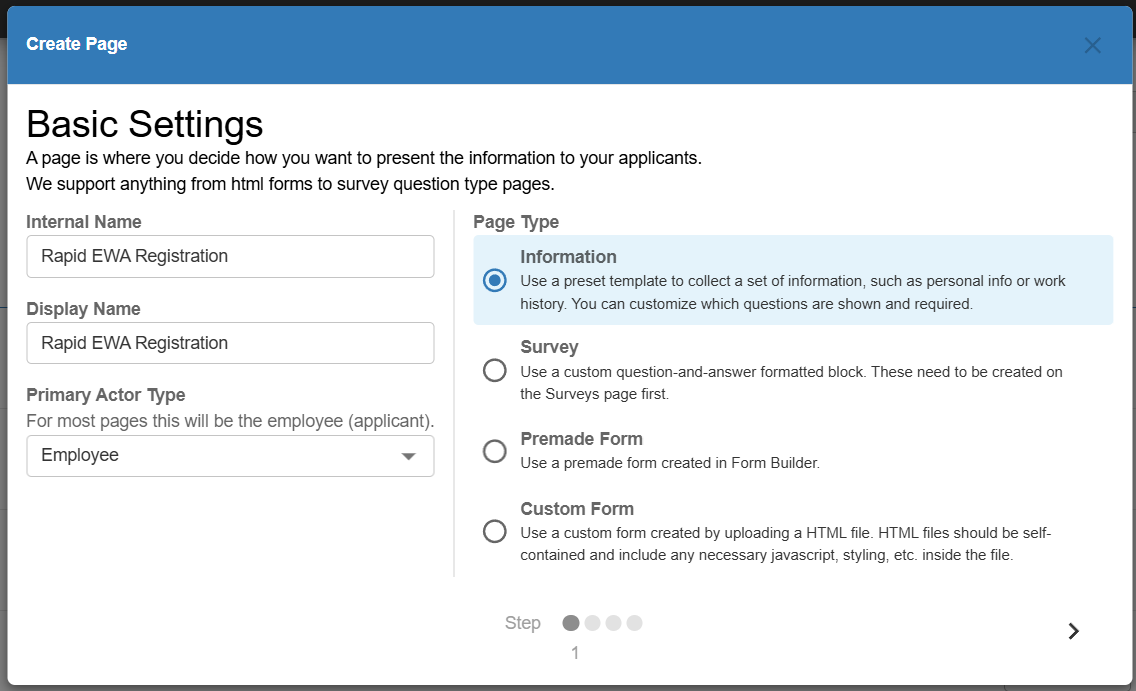
Within the "Create Page" window, under "Basic Settings", enter/select the following:
- Internal Name: Rapid EWA Registration
- Display Name: Rapid EWA Registration
- Primary Actor Type: Employee
- Page Type: Information
Once the information has been entered, select the ">" arrow to continue:
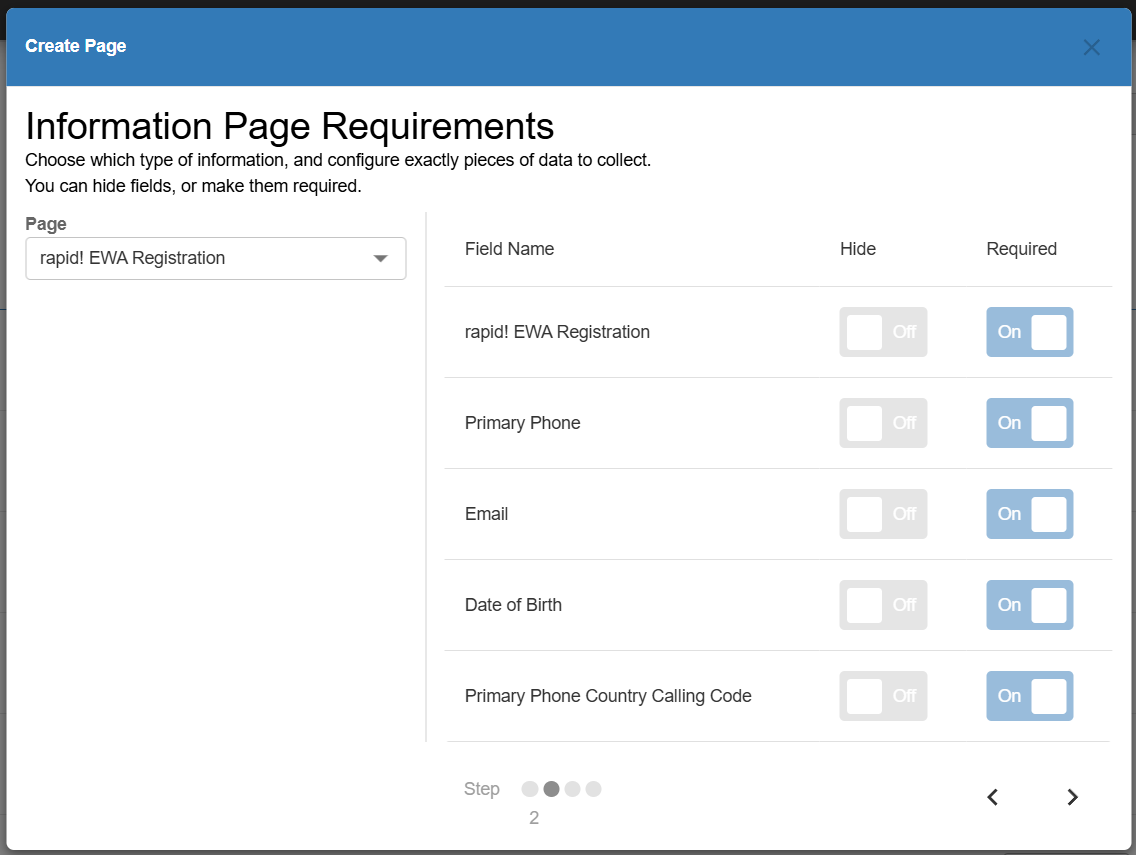
Within the "Information Page Requirements" section, select the following:
- Page: Rapid! EWA Registration
- Validate the following are set to "Required":
- Rapid! EWA Registration
- Primary Phone
- Date of Birth
- Primary Phone Country Calling Code
- Validate the following are set to "Required":
Once the information has been validated, select the ">" arrow to continue:
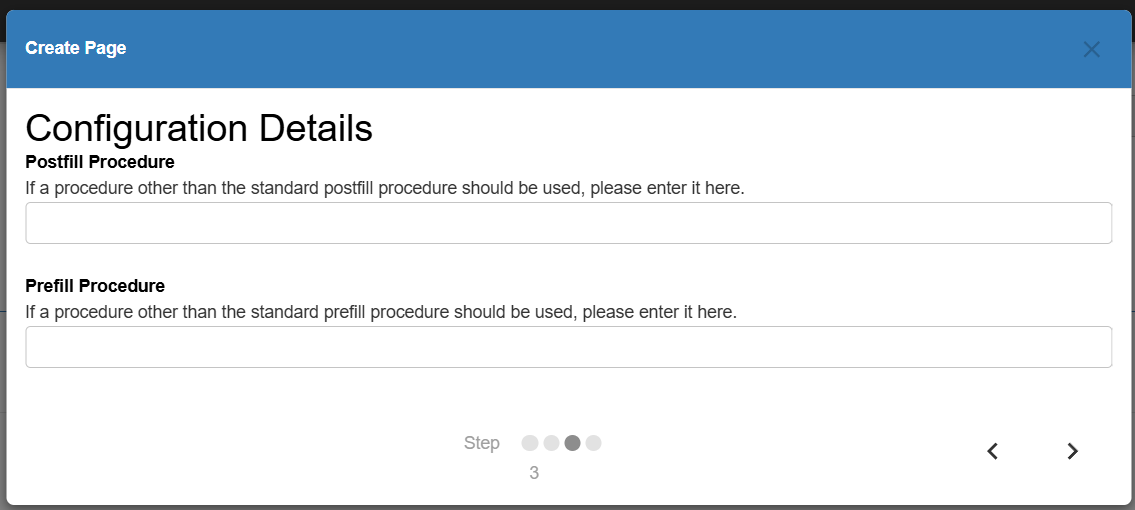
Within the "Configuration Details" section, leave both procedure options blank and select the ">" arrow to continue:
Select "Save" to complete the setup of the HRCenter page:
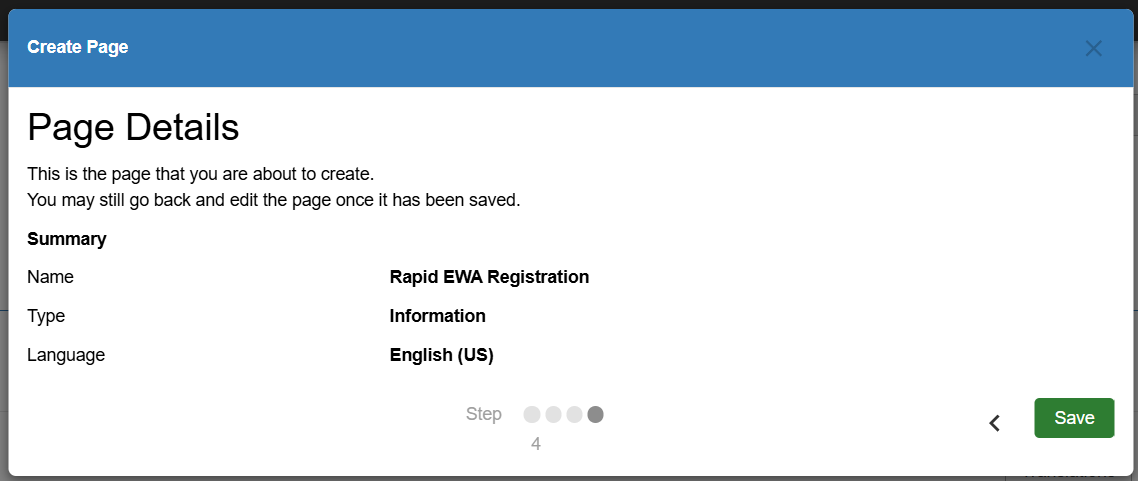
Once the page has been setup, it is ready to be added to a workflow and assigned to employees to complete.
*Note* For more information on adding pages to workflows and assigning workflows to employees, please see the following articles:
How to Utilize Rapid! Earned Wage Access
Once the account registration has been setup in Beyond and the HRCenter page has been created, the following steps are completed for the utilizing of Rapid! EWA:
*Note* The Rapid! EWA integration requires employees to be on an Active assignment to be able to complete the HRCenter page and sync record information.
- Employee completes the Rapid! EWA Registration HRCenter page
- Employee uses EWA from Rapid!
- Adjustment file is created by Rapid! and imported within TempWorks
- Adjustments are applied to the employee and the lump sum amount is deducted from their paycheck when payroll is completed
- Adjustments can be reviewed via the Employee Adjustments report along with reporting through the Rapid! Portal
Completing the Rapid EWA Registration HRCenter Page
You will need to assign the newly created Rapid! EWA Registration HRCenter page to the employee record(s) that will be utilizing Rapid! EWA.
*Note* For more information on the Onboarding process, including instructions on how to assign an HRCenter Page/Workflow, please see the following article titled Beyond - How to Assign a New HRCenter Workflow or Page.
Once assigned, the employee will log into their instance of HRCenter and complete the page.
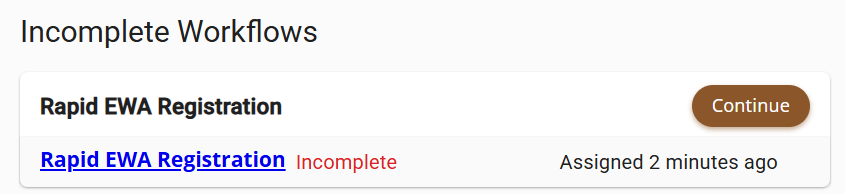
With the employee logged into HRCenter, they will see the Rapid! EWA Registration will need to be completed:
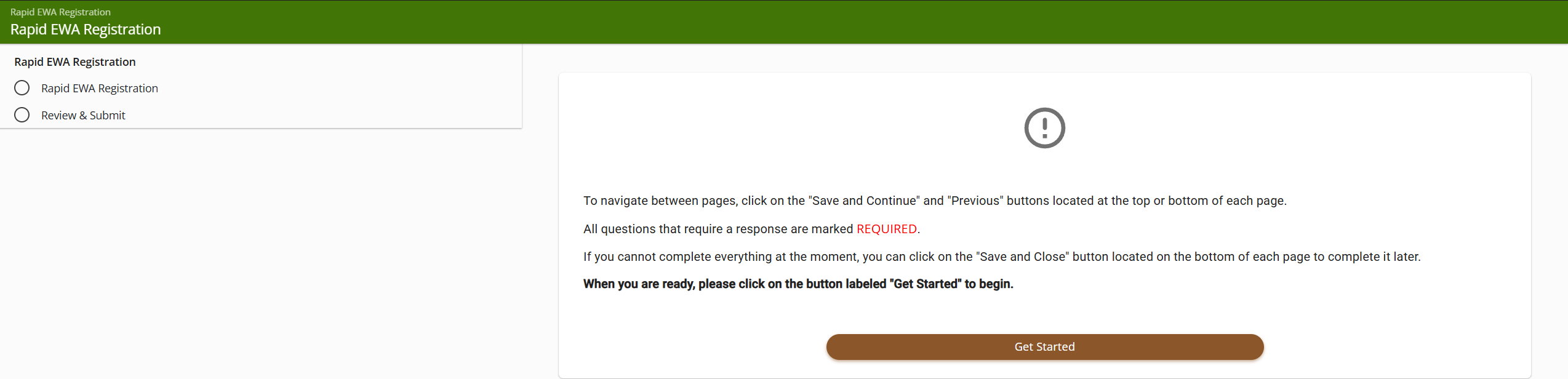
The employee will then select "Get Started" to begin the registration page:
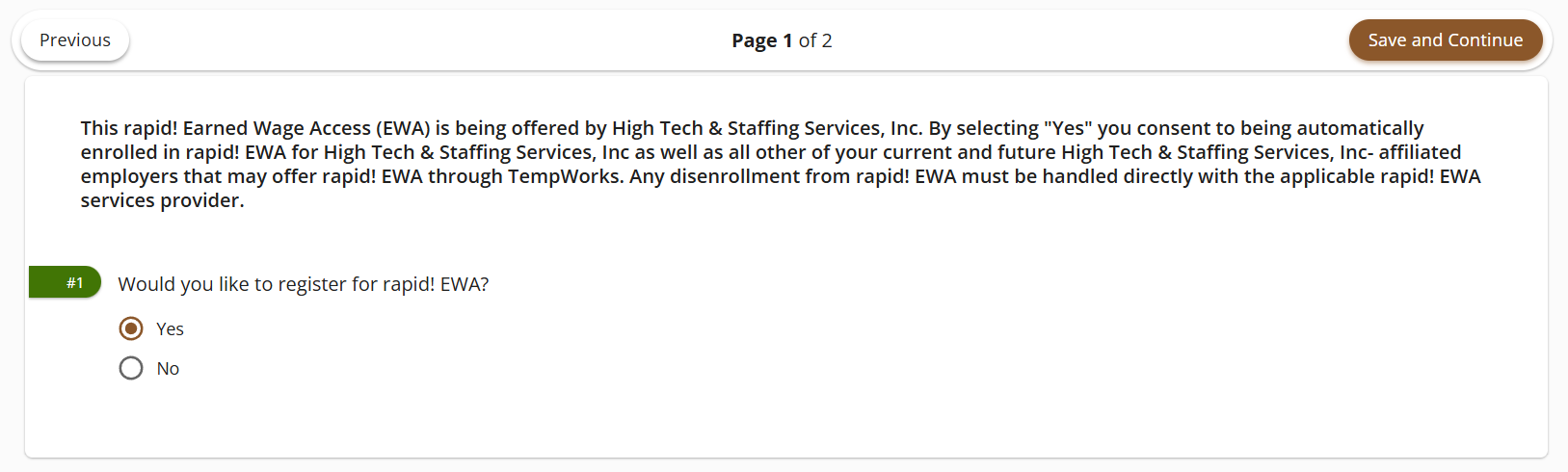
The employee will select "Yes" to confirm they would like to register with Rapid! EWA and then select "Save and Continue":
*Note* In the event the employee is missing any of the following information from their record, they will be required to enter it before being able to continue:
- Primary Phone Number
- Email Address
- Date of Birth
The employee will select "I am finished! Submit." to complete the HRCenter workflow:
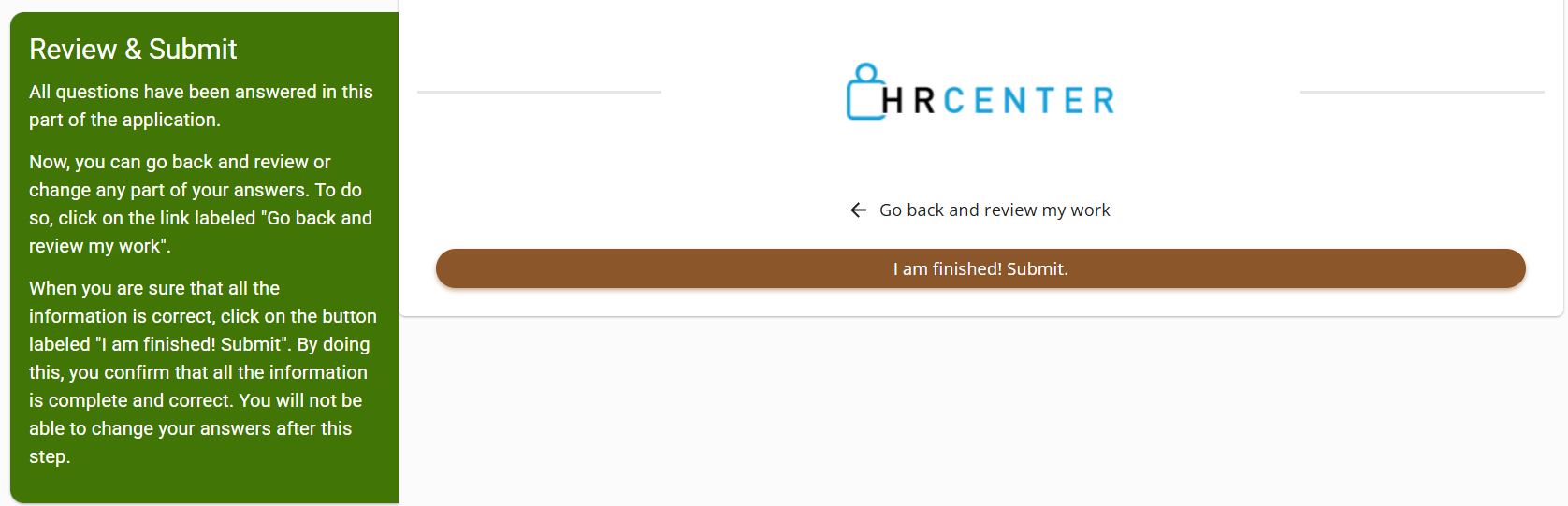
Once the employee has completed registration within HRCenter, they will need to complete the setup within either the app (Rapid!Pay) or the website.
Employee Uses EWA from Rapid!
When an employee decides to utilize EWA and access their funds, this is all completed from Rapid!
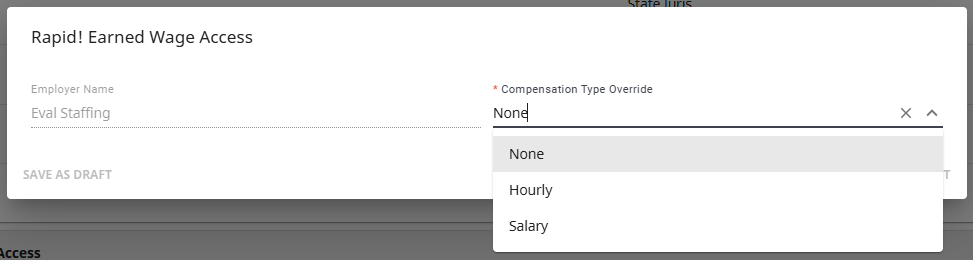
*Note* Depending on whether the employees are paid hourly or salary, you can navigate to the Employee > Pay Setup > Rapid! Earned Wage Access Card > Select the  icon to the right > Select "Edit Compensation Type Override", and select the appropriate option:
- None (Default)
- Hourly
- Salary
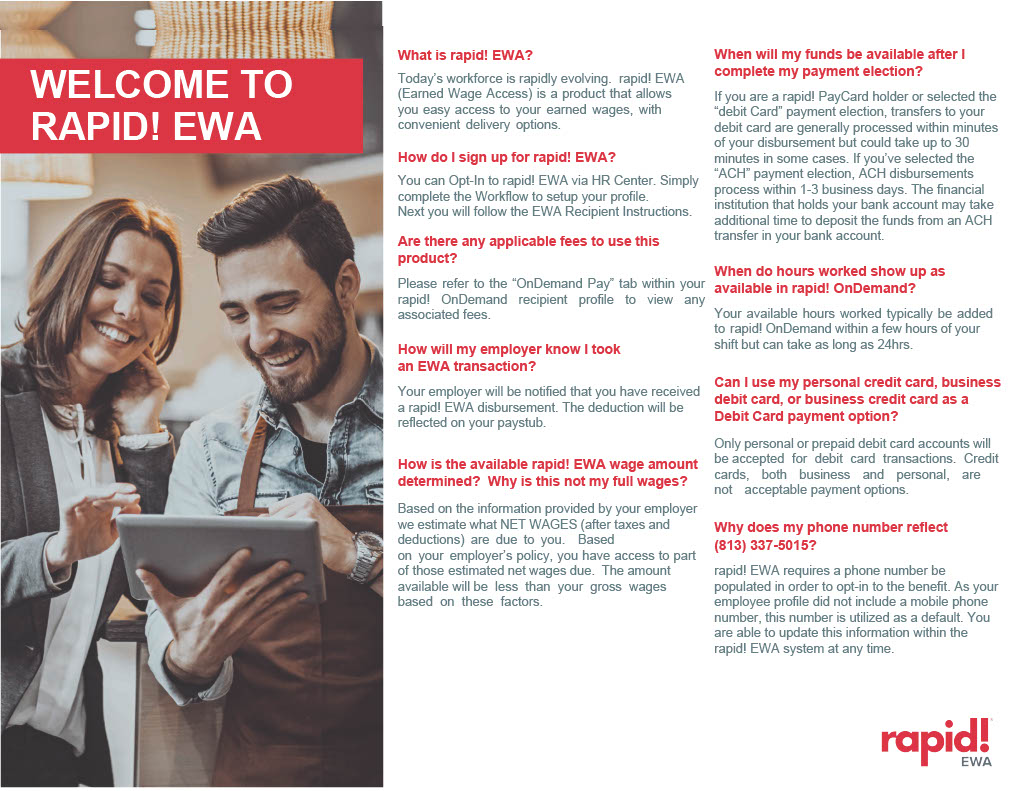
Rapid! EWA FAQ
The below FAQ includes important information for employees utilizing Rapid! EWA.
Applying Adjustments and Completing Payroll
Once an employee utilizes Rapid! EWA, an adjustment file is generated by Rapid! and is sent to TempWorks to apply the "RapidEWA" adjustments to the respective employee record.
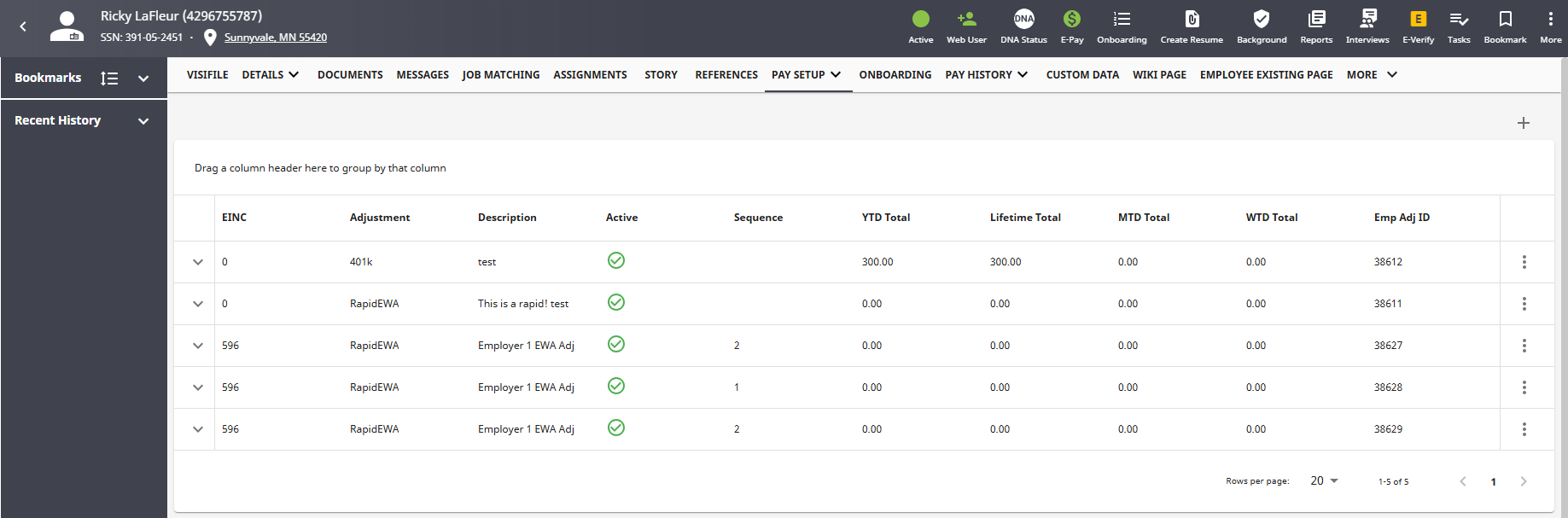
The adjustments from the file will determine the lump sum that will be deducted from the respective employees check once payroll is completed within Enterprise.
Once the adjustments are applied to the respective employee records utilizing Rapid! EWA, payroll is able to be completed.
*Note* Every time an employee utilizes EWA, a new adjustment file is sent from Rapid! during that pay period. Therefore, new adjustments are applied to the employee record and previously paid adjustments are marked as "inactive".
*Note* Rapid! EWA does not support the use of units within timecards.
For example, if an employee has a timecard with both hours and units, Rapid! EWA will apply only to the hours within the timecard and not the units.
Rapid! EWA requires timecards to include daily hour details. To meet this requirement, please enter the hours worked for each day in the Day 1 through Day 7 fields on the timecard.
*Note* When creating the transactions during payroll, you may receive the following warning:
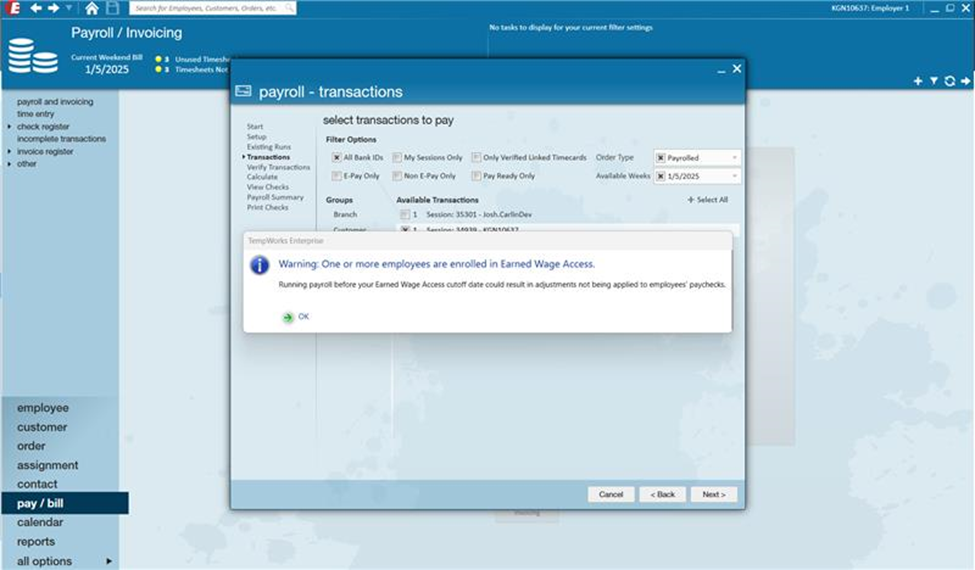
This warning is received if the payroll run is started before the payroll cutoff date. This will not prevent you from continuing the payroll run.
Reviewing Adjustments
Once payroll has been completed and adjustment amounts have been deducted from the employee's paycheck, adjustments are able to be reviewed from within the "Employee Adjustments" report along with reporting directly within the Rapid! Portal.

Employee and Employer Configurations
In the event the employee or employer record are to no longer be enrolled in Rapid! EWA, there are configuration options available depending on the record type.
Employee Configurations
Navigate to the Employee Record > Pay Setup > Rapid! Earned Wage Access card > Select the  icon to the right of the card to see the following options:
- Activate employee in Rapid!: If previously suspended, you can re-activate the employee with Rapid! EWA.
- Suspend employee in Rapid!: If previously active, you can suspend the employee from Rapid! EWA.
- Close employee in Rapid!: If previously active or suspended, you can close the employee from Rapid! EWA.

*Note* Please keep in mind the following regarding the different employee configurations:
- Suspending an Employee: Clicking the "Suspend" option will put the employee into a "Suspending" status until the last adjustment file from Rapid! has been received. Once the file has been received, the employee will move to a "Suspended" status and can be reactivated at a later date by selecting the "Activate" option.
- Closing an Employee: Clicking the "Close" option will put the employee into a "Closing" status. During this same time, TempWorks is waiting for the last adjustment file from Rapid!. Once received and applied, the employee will move to a "Closed" status. Once closed, the employee would need to re-register for Rapid!. The "Activate" option will not be selectable.
Employer Configurations
Navigate to Beyond > System Settings > External Services > Rapid! Earned Wage Access > Select the  icon to the right of the account to see the following options:
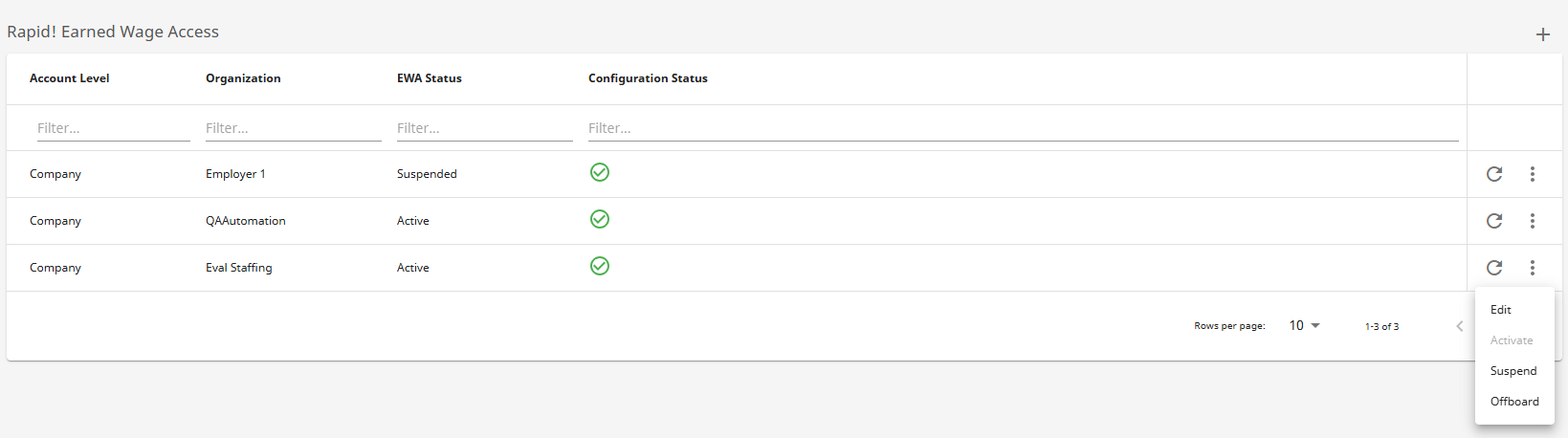
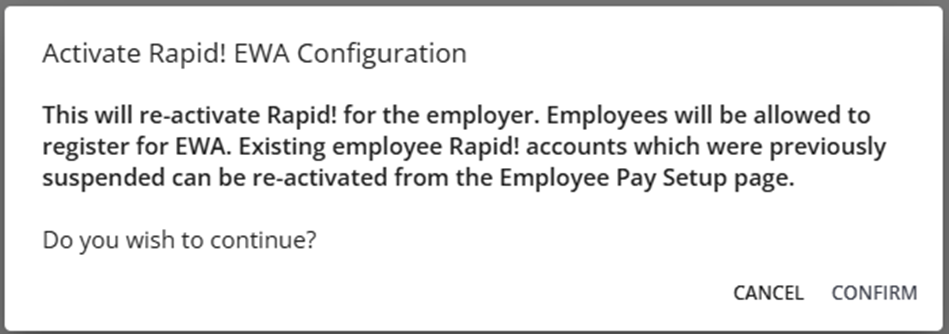
- Activate: If previously suspended, you can re-activate the employer account with Rapid! EWA. Previously suspended employees will need to be manually re-activated to gain access to Rapid! EWA.
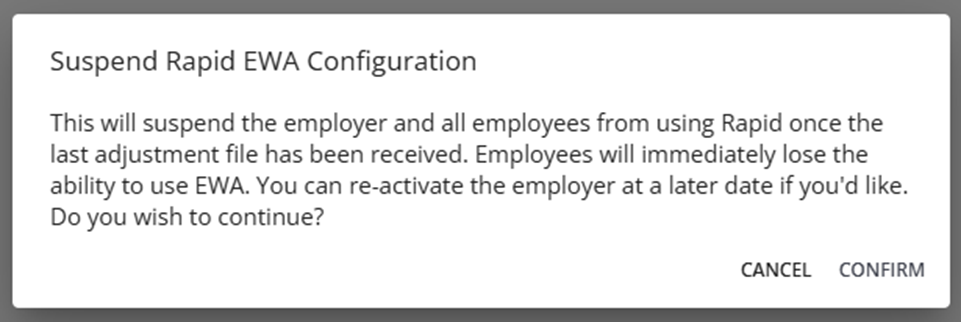
- Suspend: If previously active, you can suspend the employer account from Rapid! EWA. This will also suspend all employees from Rapid! EWA.
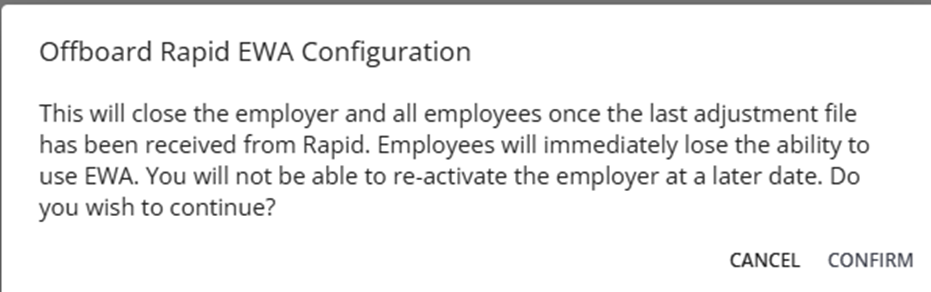
- Offboard: If previously active or suspended, you can close the employer account from Rapid! EWA. This will also immediately cause all employees to lose access to Rapid! EWA.
*Note* Please keep in mind the following regarding the different employer account configurations:
- Suspend: Clicking the "Suspend" option will put the employer account into a "Suspending" status until the last adjustment file from Rapid! has been received. Once the file has been received, the employer account will move to a "Suspended" status and can be reactivated at a later date by selecting the "Activate" option.
- If suspended, all employees will immediately lose the ability to use Rapid! EWA.
- If re-activated, all employees previously suspended will need to be manually re-activated within the employees Pay Setup.
- Offboard: Clicking the "Offboard" option will put the employee into an "Offboarding" status. During this same time, TempWorks is waiting for the last adjustment file from Rapid!. Once received and applied, the employer account will move to an "Offboarded" status. Once offboarded, the employer account would need to be re-created. The "Activate" option will not be selectable.
- If offboarded, all employees will immediately lose the ability to use Rapid! EWA.
- Once a new employer account is created, all previously active/suspended employees will need to manually re-register (complete the Rapid! EWA Registration HRCenter page) before being able to access Rapid! EWA.