
Overview
To improve the stability of email delivery in WebCenter, and to support future enhancements to our notification capabilities, TempWorks is introducing a new cloud-based Notification Service.
*Note* The Notification Service within WebCenter is not available for Self-Hosted clients.
*Note* The new Notification Service continues to utilize existing Notification Events that are configured within WebCenter.
Instructions on how to setup Notification Events are included further within this article.
Pre-Requisites
The following are required to be setup with the Notification Service in WebCenter:
- Complete the setup and verification of a Registered Domain within Beyond by following the steps outlined within the Beyond - Notification Service article.
- Complete the setup of your Mass Mailer account utilizing the newly Registered Domain in Beyond by following the steps outlined within the Beyond - Mass Mailer Account Setup article.
Once the above steps are completed, the WebCenter configurations are able to be enabled.
*Note* In the event the above pre-requisites have not been completed before enabling the configurations within WebCenter, notification routing through the new Notification Service will not function.

Enabling Notification Service Configurations
With the introduction of the Notification Service within WebCenter, new WebCenter configurations have been added that will need to be enabled based on your business needs:
- Notification Email Routing
- Notification Service: From Address
Notification Email Routing
This configuration controls how WebCenter notification emails are sent.
Within WebCenter Administration, navigate to "Config" > "Notifications" > "Notification Email Routing":
- When: "WebCenter Application Name"
- Is: The name of the Entity you are updating the configuration within
- Use: "Notification Service"
Selecting the "Notification Service" option will allow for WebCenter notification routing through the new Notification Service.
*Note* Setting this configuration to "Notification Service" will not remove any prior SMTP notification configuration settings but instead updates the routing of the notifications.

Notification Service: From Address
This configuration allows Administrators to define which mass email address should be used for WebCenter notifications.
Within WebCenter Administration, navigate to "Config" > "Notifications" > "Notification Service: From Address":
- When: A filter can be selected, if needed. Otherwise, this can be left blank in the event the email address will be applicable for all record types
- Is: The value entered is dependent on the filter selected within the "When" dropdown
- Use: The email addresses listed within the dropdown are based on what has been setup within Beyond for the mass mailer and what is accessible by the user that is currently logged into WebCenter Admin.

Once the Notification Service configurations have been enabled within WebCenter, the standard notification events can be configured to your business needs.
Enabling Notification Events
WebCenter has a number of notification events that you can enable or disable for users.
*Note* Please keep in mind that enabled notifications can be turned off by the individual employee or customer contact.
More information can be found within the following articles:
Notification events are found within WebCenter Admin > Config > Notifications:
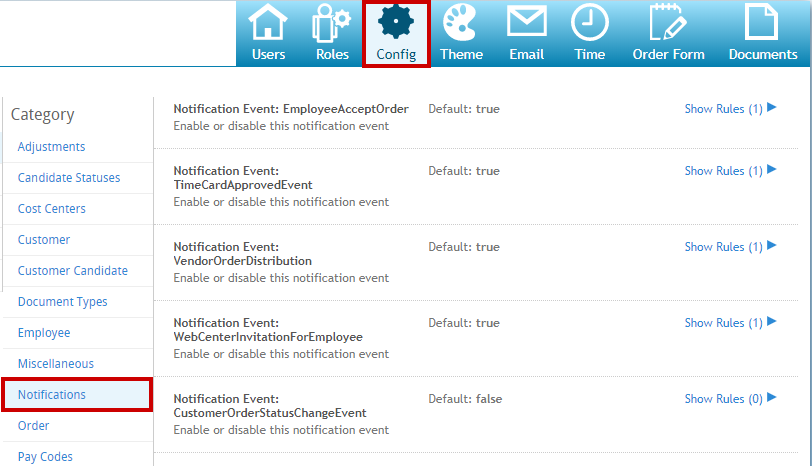
For each Notification Event, you can create a rule to enable or disable it. The default setting will be listed next to the event name.
- True: Notification Enabled
- False: Notification Disabled
Example Rules
Enable a Notification for the Entire Application:
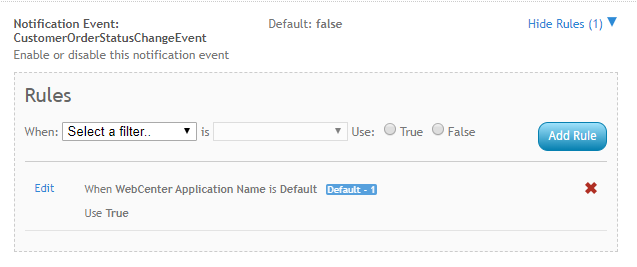
The "WebCenter Application Name" option allows you to change the default to True in this case.
Enable a Notification for a Specific Branch: 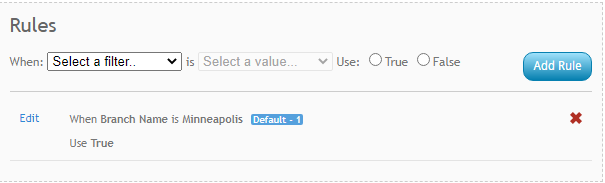
List of Notification Events
| Notification Event | Description | Default | Email Recipients |
|---|---|---|---|
| Added Order Candidate | Sent when a candidate is added to an order through the Job Board, WebCenter, or Enterprise | False | Branch, Contact |
| Candidate Message | Sent when there is a candidate for a customer to review | False | Branch |
| Candidate To Review | Sent when there is a candidate for a customer to review | False | Contact |
| Create Order Request | Sent when a customer contact submits a new order | True | Branch, Contact |
| Customer Order Status Change | Sent when an order status has been changed | False | Contact |
| Customer Update Candidate Status | Sent when a customer contact changes a candidate status | True | Branch |
| Employee Accept Order | Sent when an employee accepts an order | True | Branch |
| Employee Update Address | Sent when an employee updates their address | True | Branch |
| Enable Emails for Automatic TimeCard Approval | Emails when system automatically approves a timecard (if TimeCard Approval is disabled, this will have no effect) | True | Employee, Contact |
| Evaluation Assignment Finished | Sent when an assignment ends | False | Employee, Contacts |
| Evaluation Thank You | Sent when a user completes the evaluation | False | Contact, Employee |
| EW2 Invite | Sent to invite an employee to sign up for electronic W-2s - this requires help from the TempWorks support team to set up | True | Employee |
| HR Order Distribution | Sent to HR Contacts on an order when a candidate status changes to s-HRnotify | False | Contact |
| Order Request Approved | Sent when a customer contact approves an order request | True | Contact |
| Order Request Notifications to Account Managers | Sends Order Request notifications to Account Managers instead of to the Branch | False | Account Manager |
| Order Request Rejected | Sent when a customer contact rejects an order request | True | Contact |
| Order Request Review | Sent when a customer contact submits an order request and another customer contact needs to review (see Configuring WebCenter Order Requests for more info) | True | Contact |
| Password Request | Sent when a user requests to change their password | True | Applicant, Contact, Employee, Service Rep, Vendor Contact |
| TimeCard Approved | Sent when a timecard is approved | True | Contact, Employee |
| TimeCard Rejected | Sent when a timecard is rejected | True | Contact, Employee |
| TimeCard Submitted | Send when a timecard is submitted | True | Contact, Employee |
| Update Candidate Status | Send when a candidate status is updated | False | Vendor Contact |
| User Message Service Rep | Sent when an employee, contact, or vendor sends a message from WebCenter. Will show/hide the option for Employees, Customer Contacts, or Vendors to message a service rep from WebCenter | True | Service Rep |
| Vendor Order Distribution | Sent when a service rep sends a vendor an order from Enterprise | True | Vendor Contact |
| Vendor Order Status Change | Sent when a vendor accepts or rejects an order or the order status is changed by a service rep in Enterprise | False | Branch, Vendor Contact |
| W2 Posted | Sent when a W2 has been posted and is availabe to be viewed in WebCenter | True | Employee |
| WebCenter Invitation For Customer | Sent when a customer contact or vendor is given WebCenter login credentials by a service rep in Enterprise | True | Contact, Vendor Contact |
| WebCenter Invitation for Employee | Send when an employee is given WebCenter login credentials from a service rep through Enterprise | True | Employee |
Once the Notification Events are configured, you can modify the WebCenter email templates to include specific information related to the notification events.
Modifying Email Templates
Each email notification has a default email template that will determine what the email looks like to the recipient. You can customize these email templates to work best for your processes.
Navigate to WebCenter Admin > "Email" to see all available email templates: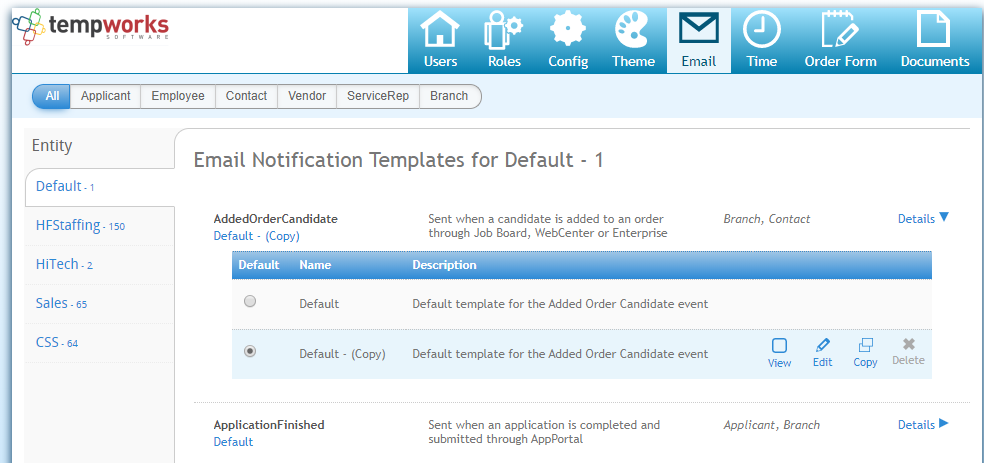
You can select a recipient along the top to see only email notifications related to that recipient:

If you have multiple Entities with separate HRCenter/WebCenter options, you can select the entity along the left:
For each notification template, select details to open up more options including editing and copying templates: 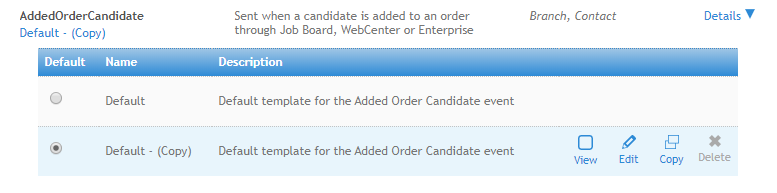
Customizing an Email Template
Each notification event will have a default template that you can view but not edit:
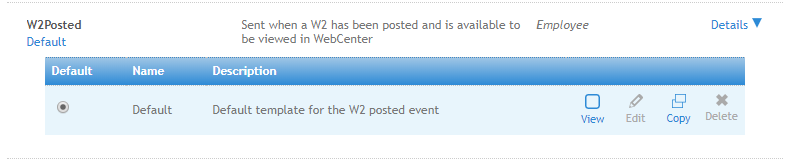
To create your own email template, select the "Copy" option & select "Edit" on the new copy to change or update the template:
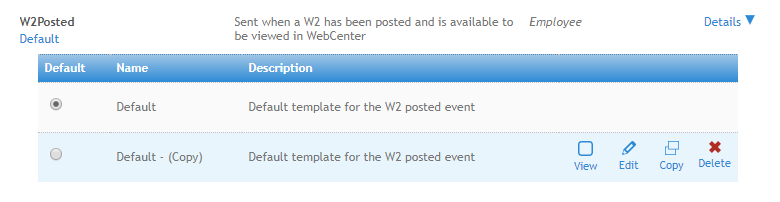
Each template will have the following:
- Title
- Description
- Subject
- Body

You can utilize the formatting options to customize what the format will look like for the email: 
You can add and edit a table using the table options: 
You can enter dynamic fields that will change. For example, "FirstName" and "LastName" will be different for each recipient or "Year" will be different based on the date (each template may have different dynamic fields):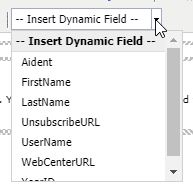
Once you have made changes and chosen "Save", you will need to select the template you want to use:
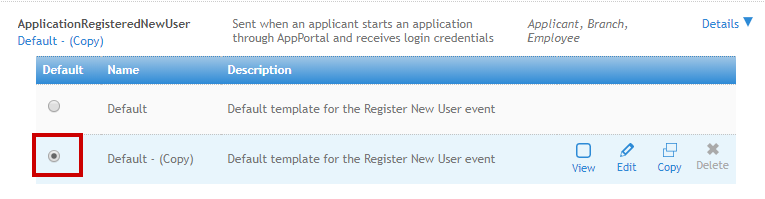
*Note* For each notification type, only one template can be used.
Changing Email Templates Based on Recipient
Even though you can only have one template per notification type, there are still options if you want to personalize an email for an employee, customer contact, branch, etc.
For example, the template for "Register New User" may be different for the employee and the branch.
You can use the dynamic fields "If--IsEmployee", "Else---IsEmployee", and "EndIf--IsEmployee": 
First use the "If--IsEmployee" field before the template you would like to use for the employee. This field says everything after "If--IsEmployee" and before "Else---IsEmployee" will be what the employee is sent via email: 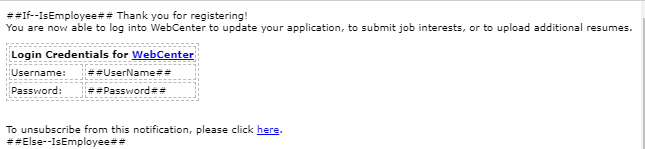
After you have made your template for what the employee should see, enter "Else---IsEmployee". This says for anyone not an employee, use the following information. Then create the template as you want the Branch (or not employees) to see: 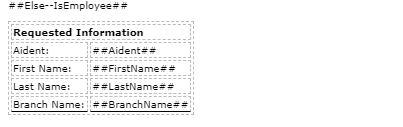
The last step is to enter the "EndIf--IsEmployee". This signifies that the template ends here and wraps things up.