Overview
Whether your employees are at home or on the go, the TempWorks Mobile App connects employees to the information they need from your staffing agency.
Availability Options
Within the TempWorks Mobile App, employee's can be set up to report their availability, if configured.
Managing Availability
Select the "Manage Availability" card:

Select the "+" to update your availability:

Within the "Set Availability" window, enter the following information:
- Date
- Start & End Time
- (Optional) Comments

*Note* You can select the "Repeats" toggle to open the "Repeats" window.

Within the "Repeats" window, select the frequency and end date that reflects your availability:

Once complete, select "Save".
Once your availability options have been configured, select "Save Availability":

Finding Availability in Beyond or Enterprise
When an employee marks themselves as available in the TempWorks Mobile Application, the recruiter can see their availability on their record in Enterprise or Beyond.
Enterprise
When an employee marks themselves as available, a message will be logged on their record, and their information will be updated under activity tracker.
Example Message Logged:

Activity Tracker:
The Activity Tracker allows you to see a calendar view of the employee's availability schedule.
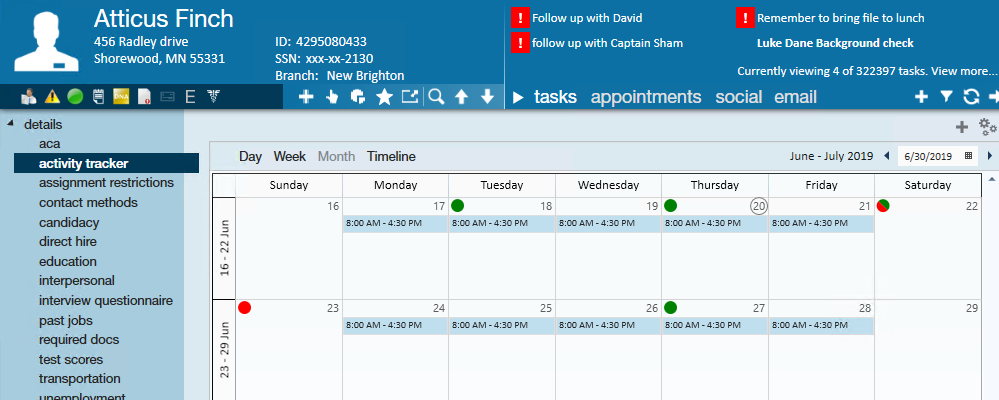
For those with the enhanced availability option:
- Green dot indicates available.
- Red is unavailable.
- Red/green is partially available.
*Note* For more information, check out Activity Tracker.
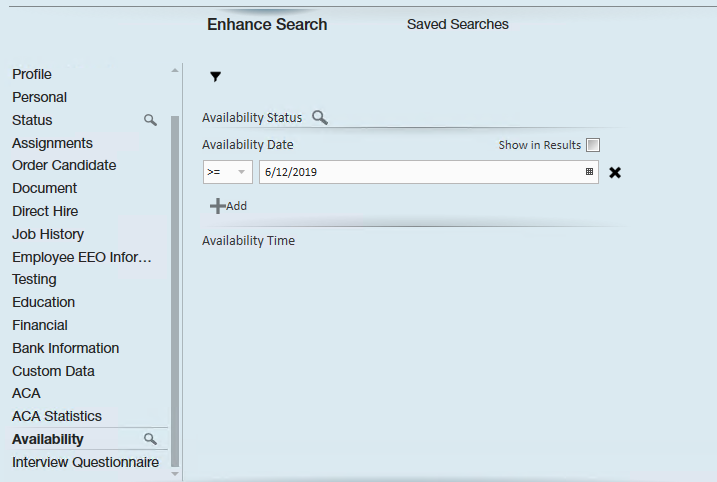
Searching:
Under Enhanced Search, there is an Availability category where you can search by availability:
Beyond
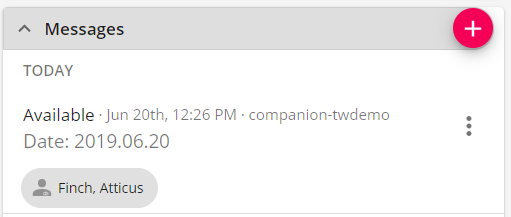
When an employee marks themselves as available, a message will be logged on their record.
Example Message Logged:
Searching:
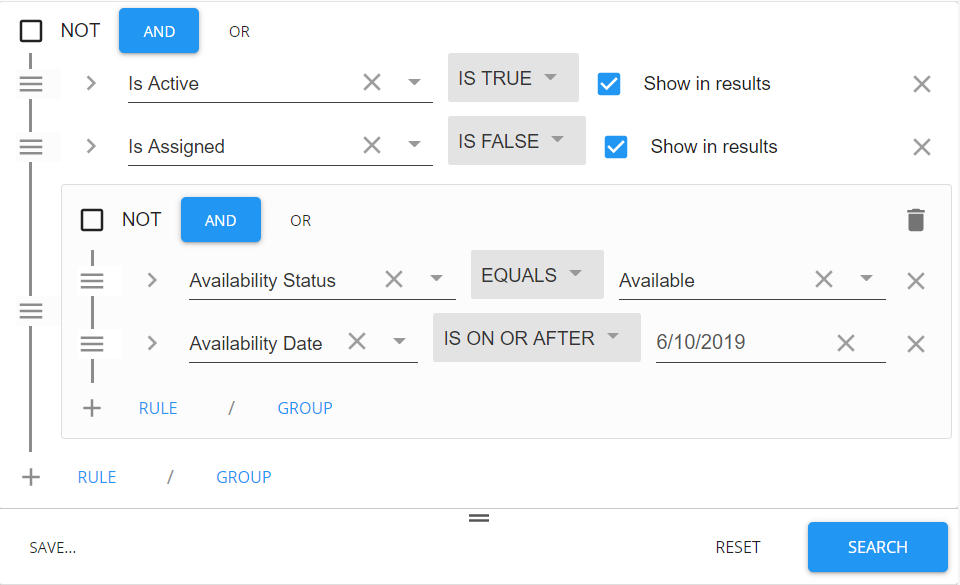
You can search for employees who have marked themselves as available by utilizing the Advanced Search options.
Select the Availability category to see all fields related to tracking availability: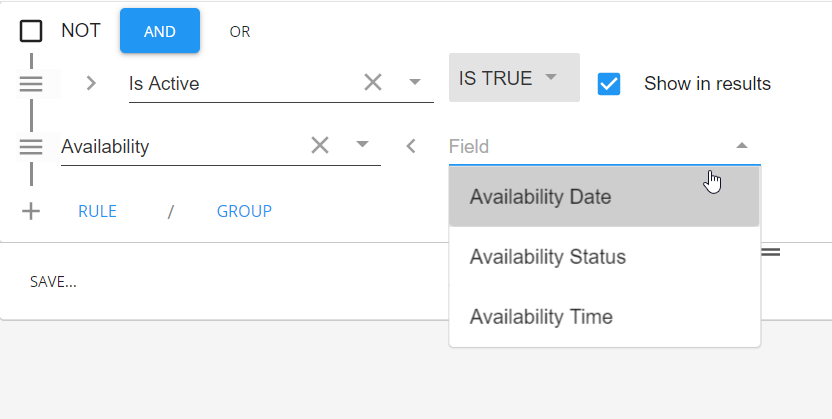
Example Search: