
What is TimeIntel by TempWorks?
TimeIntel by TempWorks, or TI, allows you to use just about any tablet or phone device as a time clock for your employees to punch in and out from. This process uses the TI application for punching and our WebCenter platform for reviewing and approving time.

*Note* The TimeIntel by TempWorks application requires Beyond access to function. Please contact your TempWorks Account Manager for more information.
The TimeIntel by TempWorks application is a licensed product. If you would like to utilize this application, please reach out to your TempWorks Account Manager.
This article reviews specific WebCenter configurations you can set up with the TimeIntel by TempWorks application.
To Locate Configuration Options in WebCenter:
- Navigate to WebCenter Admin
- Select the Config tab:

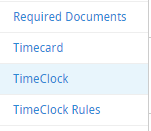
- Choose TimeClock Category:
Enabling On-Site Time Punches
Enable On-Site Time Clock App Punching configuration is required in order for the TimeIntel by TempWorks application to allow and send time clock punches to WebCenter. 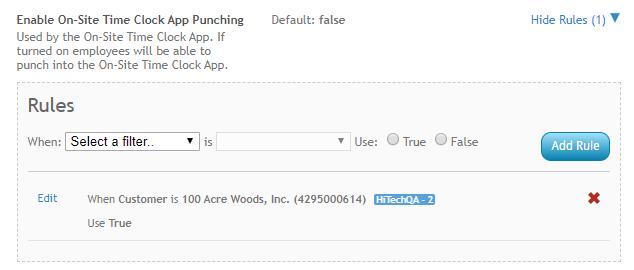
*Note* For more information, please see the article titled How to Setup TimeIntel by TempWorks.
Enabling Facial Recognition
You can utilize facial recognition to require a facial verification every time any employee punches in or out. This is in addition to their log in method.
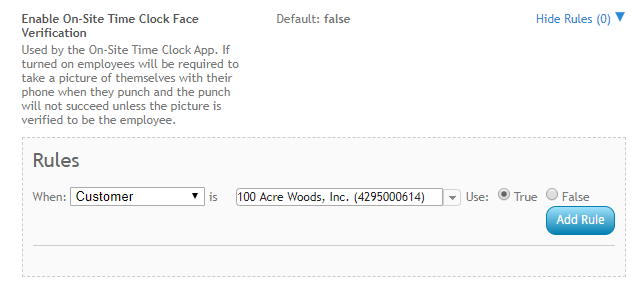
To turn this feature on, first create a new rule for the Enable On-Site Time Clock Face Verification configuration:
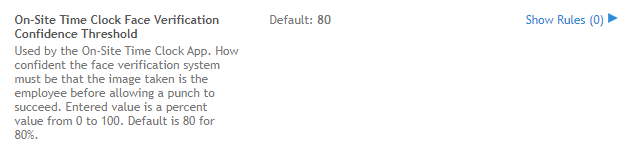
If you are having trouble with employee's facial recognition acceptance, you can create rules on the On-Site Time Clock Face Verification Confidence Threshold config to change the threshold. (We recommend keeping it at the 80%)
Once you have turned on the facial recognition configuration, you will need to make sure your employees are set up with a facial recognition profile. We recommend doing this during an orientation or before they start as it can take a few minutes.
Navigate to their Web User Account Details (Via the  charm) and select the "Create Facial Verification Profile" action in the
  menu beside the Buzz app web user product.
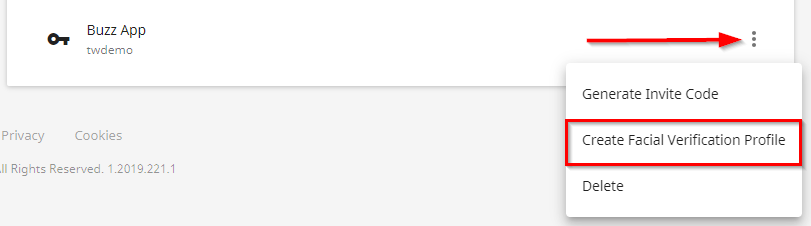
The employee will be prompted to set up their facial verification profile when clocking in the first time on within the TimeIntel by TempWorks application.
Enabling Geofencing
If you are not mounting your device to a wall, you may want to use geofencing to ensure when employees are clocking in they are within the worksite. In WebCenter admin, create a rule under the Enable On-Site Time Clock Geofencing configuration to turn this option on per customer or department.
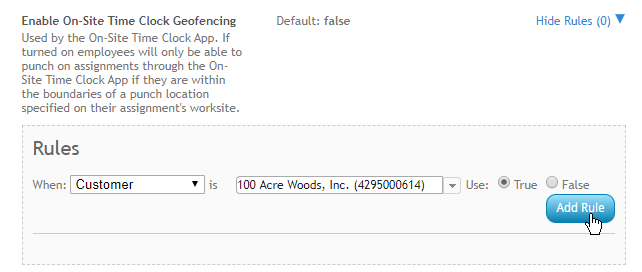
Once you have turned this feature on, you will want to make sure your worksites are set up with punch locations:
- Navigate to Customer > Details > Worksite and select the worksite:
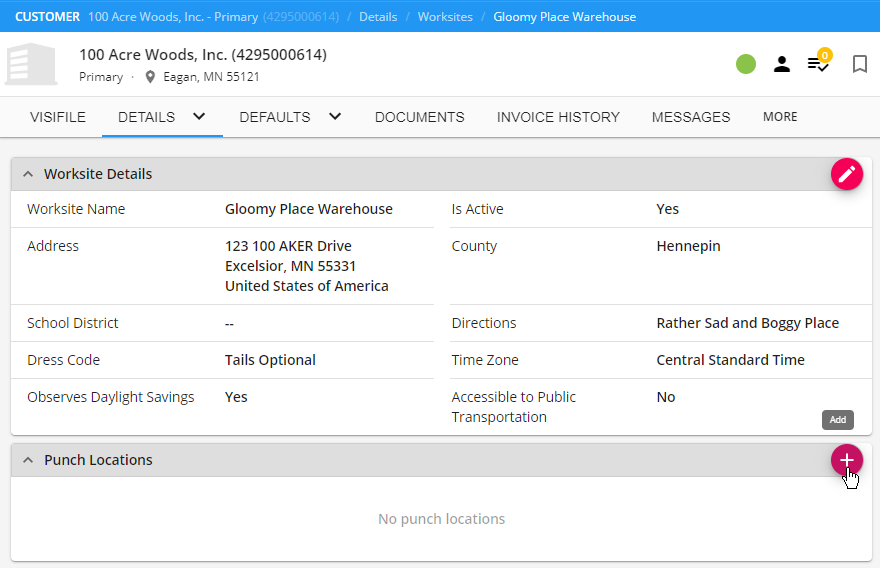
- Select the "+" on the "Punch Locations" card
- Name the punch location and update your radius as necessary
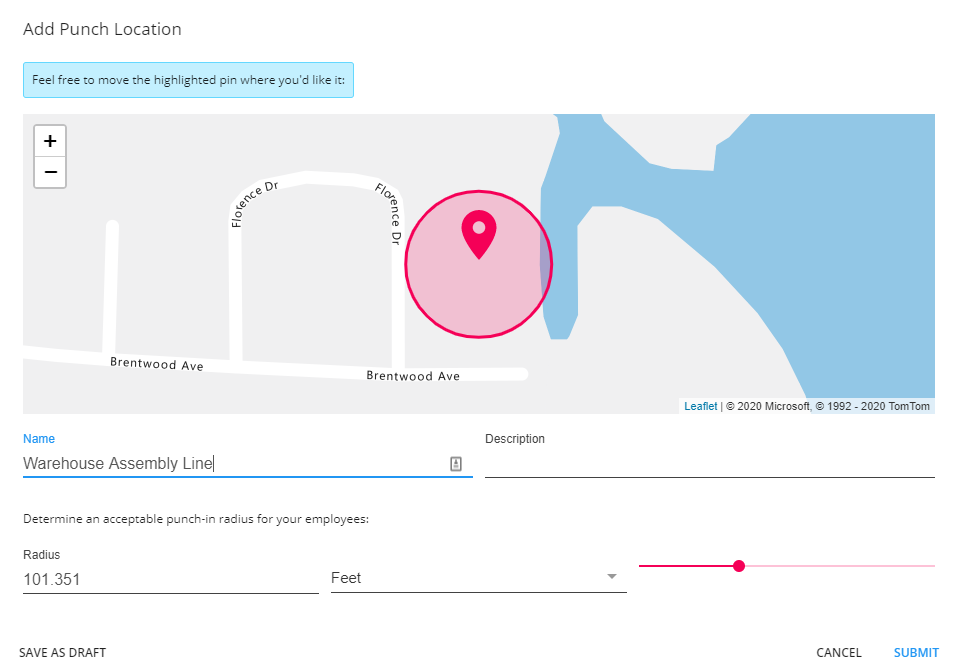
- Select "Submit"
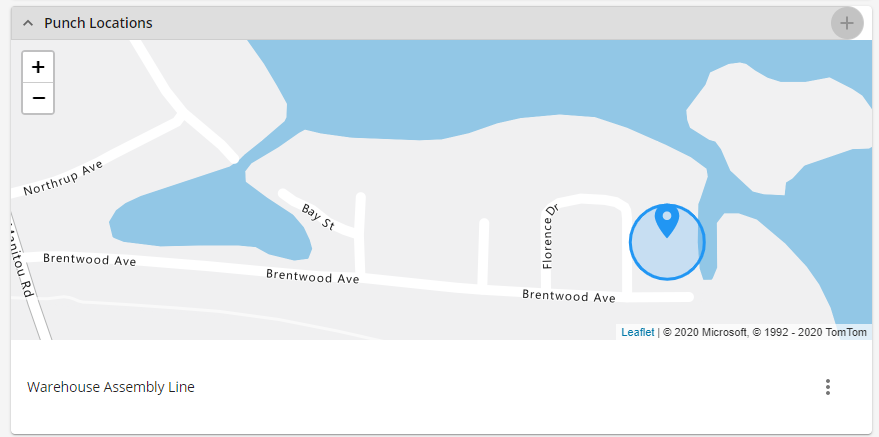
*Note* If you have not used geofencing before, there may be additional setup required in your system. Talk with your account manager or support team for more information.
Standard TimeClock Configurations
There are some basic configurations that must be set for the TimeClock to work effectively. These base configurations can be done at system level, or they can be done on a customer or department basis. They are accessed in the WebCenter Admin under Configs > TimeClock.
Auto Accept Timer: This is the number of seconds that the TimeClock hardware waits for user input before accepting the default punch action. 
QuickPin Text Length: This is the number of letters that the TimeClock waits for in a standard TimeClock quickpin. 
QuickPin Numeric Length: This is the number of numbers that TimeClock waits for in a standard TimeClock quickpin. Numbers always come after letters. 
Max Shift Length: The TempWorks TimeClock works by arranging punches into shifts based on a configurable length of time, defaulting to 780 minutes or 13 hours. When a timecard is processed, punches are put into groups that encompass a time period. After that time period has been exceeded, the next punches are placed in a new shift that goes for that amount of time. Shifts cut off after the maximum shift length regardless of how many punches are on them. Because of this, it is vital that this configuration be set correctly.

Example:
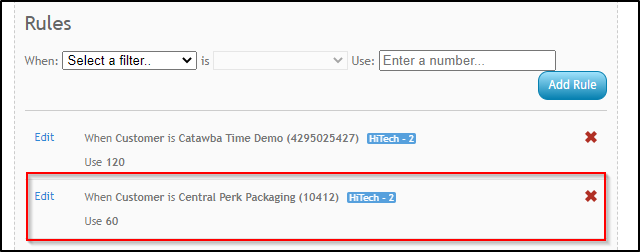
- This customer Central Perk Packaging is set up with a rule where their max shift length is 60 minutes (seen above in screenshot).
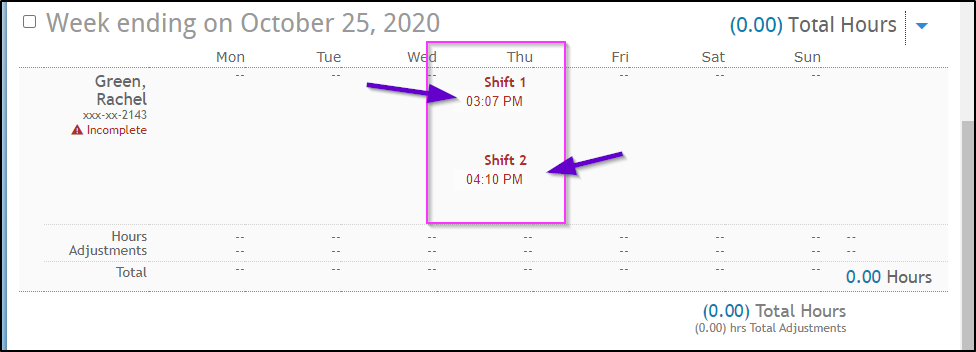
- An employee, Rachel Green, punches in at 3:07 PM. When she punches out at 4:10 PM her second punch creates a separate punch under Shift 2 on her timecard because her second punch was over the max shift length of 60 minutes (screenshot below is from the view from the contact perspective in the contact portal of WebCenter under the time clock tab). This means she technically hasn't clocked out from her Shift 1. This is what we are referring to above when we say punches are put into groups that encompass a time period. The employee would need to contact their supervisor or staffing company to resolve this issue by updating their punches. This is why it's extremely important to make sure your max shift lengths are set up correctly.
Third Shift Spillover: This configuration is used for 3rd shifts that cross the week. Punches falling into this time frame that have matching punches (same assignment, pay code, cost code) within the previous max shift length hours on the other week are pushed onto the timecard for the previous week.
Example:
- The weekend day is Sunday and someone is assigned to work third shift from Sunday into Monday. The configuration for max shift length is 780 or 13 hours, and the configuration for third shift spillover is 360 or 6 hours.
- The person punches in for work at 9 PM on Sunday, and the punch is placed on a timecard. The person later punches out of work at 5 AM on Monday in the new week.
- Because that punch is in the first six hours after midnight (before 6 AM), and there is a punch on that assignment, pay code, and cost code in the 13 hours preceding that punch, the punch is assumed to belong on the previous week.

Double Punch Threshold: This configuration is the number of minutes after an initial punch that additional punches should be ignored for. For instance, if this configuration is set to five and an employee punches at 7:00AM, any additional punches between 7:00AM and 7:05 AM will be ignored. 
TimeClock Timecard Rounding: When this is on, the number of minutes on a TimeClock timecard will be rounded to the nearest 15 minute interval. To get the most accurate data, this rounding occurs at the day level, and not at the shift level.
Example:
- if an employee works both first and third shift in a day, and that employee works for 8 hours 5 minutes on first shift, and for 8 hours 4 minutes on third shift, the hours will first be added together to total 16 hours, 9 minutes.
- After this, they will be rounded to 16 hours, 15 minutes for the daily total.

Start Early Upper Limit and Start Early lower limit: These configurations establish a time frame before the designated shift start time where an employee will be unable to clock in. This prevents employees from clocking in to work early. Typically Start Early Upper Limit will be set to 360 and start early lower limit will be set to 30. This will make it so that an employee cannot punch between 360 minutes (6 hours) and 30 minutes before his/her designated shift start time. 
Daily Pay Number Of Days: This configuration will allow you to determine how many days back a TempWorks TimeClock will look for to find Daily Pay Assignments. The configuration is defaulted to look back 1 day.
TimeClock Rule Configurations
TimeClock rules determine how punch in & out times and breaks behave in the system. This information can be found in WebCenter Administration under Configs > TimeClock Rules.
There are 3 types of rule configurations:
- Adjustment
- Snap
- Warning
 Adjustment Configurations
 Adjustment Configurations
Adjustment configurations relate to how breaks change hours worked, etc.
Automatic lunch adjustment:
An automatic lunch adjustment subtracts a configurable number of minutes from a shift. 
There are two configuration values for this:
- The first configuration value is the minimum length that a shift must have in order for an automatic lunch to be added.
- The second configuration value is the length of that automatic lunch in minutes.
Note that automatic lunches will not be added to shifts that have any breaks on them at all. For example, if we wanted to give an employee a 30 minute lunch adjustment after working 4 hours, enter 240 for qualifying 30.
Minimum breaks adjustment:
A minimum breaks adjustment is added when the amount of breaks on an employee’s timecard are below a certain threshold. 
For instance, if this configuration is set to true with qualifying minutes 45, an employee with no breaks on his or her shift will have 45 minutes subtracted from it. If minimum breaks is set to 45, an employee with 15 minutes of breaks already on their shift will have an additional 30 minutes subtracted.
Paid breaks adjustment:
A paid breaks adjustment is used when it is desired that employees punch in and out for breaks for record keeping purposes, but those breaks should be paid.
When this configuration is set to true, time will be added to the timecard to pay breaks up to a configurable amount of time.
For instance, if this configuration is set to true with qualifying minutes 30 and an employee punches in and out for a 27 minute break on a shift, 27 minutes will be added back on the timecard to pay that break. If a different employee punches for 45 minutes of break on a shift, that employee’s timecard will have 30 minutes of break added back.
 Snaps
Snaps
 Snaps
SnapsSnaps adjust punch in and out times for rounding purposes.
Early arrival snap:
The early arrival snap changes a punch time to the shift start time if the punch is within a configurable number of minutes before the shift start time.
For instance, if this configuration is set to true with qualifying minutes at 15, and an employee is scheduled to start at 7:00 AM and punches any time between 6:45 and 7:00, the punch will be moved to the 7:00 AM start time.
Late arrival snap:
This is the same as early arrival snap, except that this is the number of minutes after the shift start time for which punches should be moved back to the start time.
Early departure snap: Same as early arrival snap, except for shift end times
Late departure snap: Same as late arrival snap, except for shift end times
Nearest interval snap:
When this configuration is set to true, all punches that have not already been affected by one of the previous snaps will be snapped to the nearest time interval (e.g. the nearest quarter hour if the configuration is set to 15).
Late arrival forward snap:
When this config is on, an employee arriving late to a scheduled shift start time will be snapped forward to the next time interval.
For instance if this config is set to true with qualifying minutes 15, an employee who is scheduled to start at 7:00am and punches at 7:03AM will have their punch snapped forward to 7:15AM.
 Warnings:
 Warnings:
*Note- Warnings are applied after snaps. This means that if an employee’s punch is snapped to 7:00AM from 6:54AM, the employee will not receive an early arrival warning because the time has already been changed.
Early arrival warning:
The early arrival warning places a warning flag on a timecard if an employee has punched in more than a configurable number of minutes early for a shift.
For instance, if this configuration is set to true with qualifying minutes 15 and an employee punches in at 6:40AM for a shift beginning at 7:00AM, an early arrival warning flag will be added to the timecard because the employee punched in more than 15 minutes before the shift start.
Late arrival warning: same as early arrival warning, but for employees arriving late.
Early departure warning: same as early arrival warning but for shift end times.
Late departure warning: same as late arrival warning but for shift end time.