
What is TimeIntel by TempWorks?
TimeIntel by TempWorks, or TI, allows you to use just about any tablet or phone device as a time clock for your employees to punch in and out from. This process uses the TI application for punching and our WebCenter platform for reviewing and approving time.
The TimeIntel by TempWorks application supports the following:
- Custom color theming and in-app logo branding
- Seamless switching between landscape/portrait orientation
- Set up facial verification profiles directly within the application
- Automatic application localization (English or Spanish) based on the language of the device
- An offline mode that continues to support time punching during intermittent service outages
*Note* The TimeIntel by TempWorks application will default to the language of the device (English or Spanish). Please follow the instructions outlined within the following articles to update the language settings on the device:
*Note* Punches submitted while the application is in "Offline Mode" will automatically sync with WebCenter once the connection is restored.

*Note* The TimeIntel by TempWorks application requires Beyond access to function. Please contact your TempWorks Account Manager for more information.
The TimeIntel by TempWorks application is a licensed product. If you would like to utilize this application, please reach out to your TempWorks Account Manager.
Before the TimeIntel by TempWorks application can be utilized, you must first complete the setup process.
*Note* Please see the following articles for setup information:
How Does TimeIntel by TempWorks Work?
- The employee punches in and out on the TimeIntel by TempWorks application (for instructions, check out Employee - Using TimeIntel by TempWorks)
- The customer supervisor reviews, edits (as necessary), and approves the punches in WebCenter (check out Customer: Timeclock Punch Approval)
- Approved time can be pulled into a "Timeclock Proofing Session" in Enterprise and processed with all other transactions
*Note* Once the TimeIntel by TempWorks application is installed, please do not delete the application as any locally stored punch information will also be deleted and cannot be recovered.
*Note* Before you proof...
- Punches must first be approved before they are seen and able to be put into a Timeclock Proofing Session in Enterprise.
- Timecards will be shown with a
 icon in Time Entry once they have been approved in WebCenter.
 icon in Time Entry once they have been approved in WebCenter.
To Create a Timeclock Proofing Session:
- In Enterprise Time Entry, navigate to the actions menu and select "Create Timeclock Proofing Session":
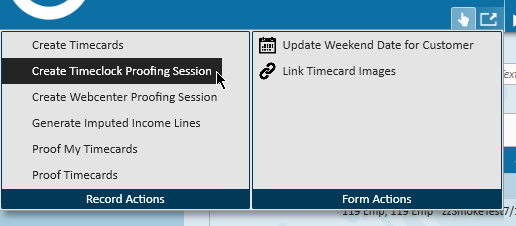
- Select "Proof Timecards" and select the newly created Timeclock Proofing Session & process timecards as normal
